Attention DTP Users:
The following is an important alert related to the Digital Transformation Platform (DTP):
WHAT
The DTP Production environment will soon be updated for a planned migration of all DTP users to a dual-authentication model to enhance DTP’s overall login security.
This upgrade will require all DTP users to perform some steps the next time they attempt to log into DTP to complete the required updated registration process in order to continue their access to the platform.
WHEN
Rollout Date: Thursday, Jan 30th between 5:00-6:00 PM ET
ACTION REQUIRED
- Please refrain from attempting to access DTP during the rollout period to avoid access/registration issues.
- After the rollout period, the next time you visit the DTP site, you will need to complete a series of steps for the updated registration process. You will be guided through the steps you need to take. However, the attached file provides a step-by-step guide of the screenshots that will be displayed and the actions you will need to take to complete the process.
- The planned rollout of the new authentication model will be at different times for the various DTP Master Client environments. This communication relates to the Hackett DTP platform at the following url: https://dtp.poweredbyhackett.com/accounts/sign-in.
- If you also have access to any other DTP Master Clients, such as the DTP Master Client for our partnership with ADP, you will receive communications in February 2025 for their planned rollout dates.
Thank you for your cooperation.
Sue Leandri
Introduction
This document provides a step-by-step guide for updating credentials for Multi-Factor Authentication (MFA) on the Digital Transformation Platform (DTP) site. It includes instructions for both the Authenticator App and SMS options for MFA.
Step by Step Guide
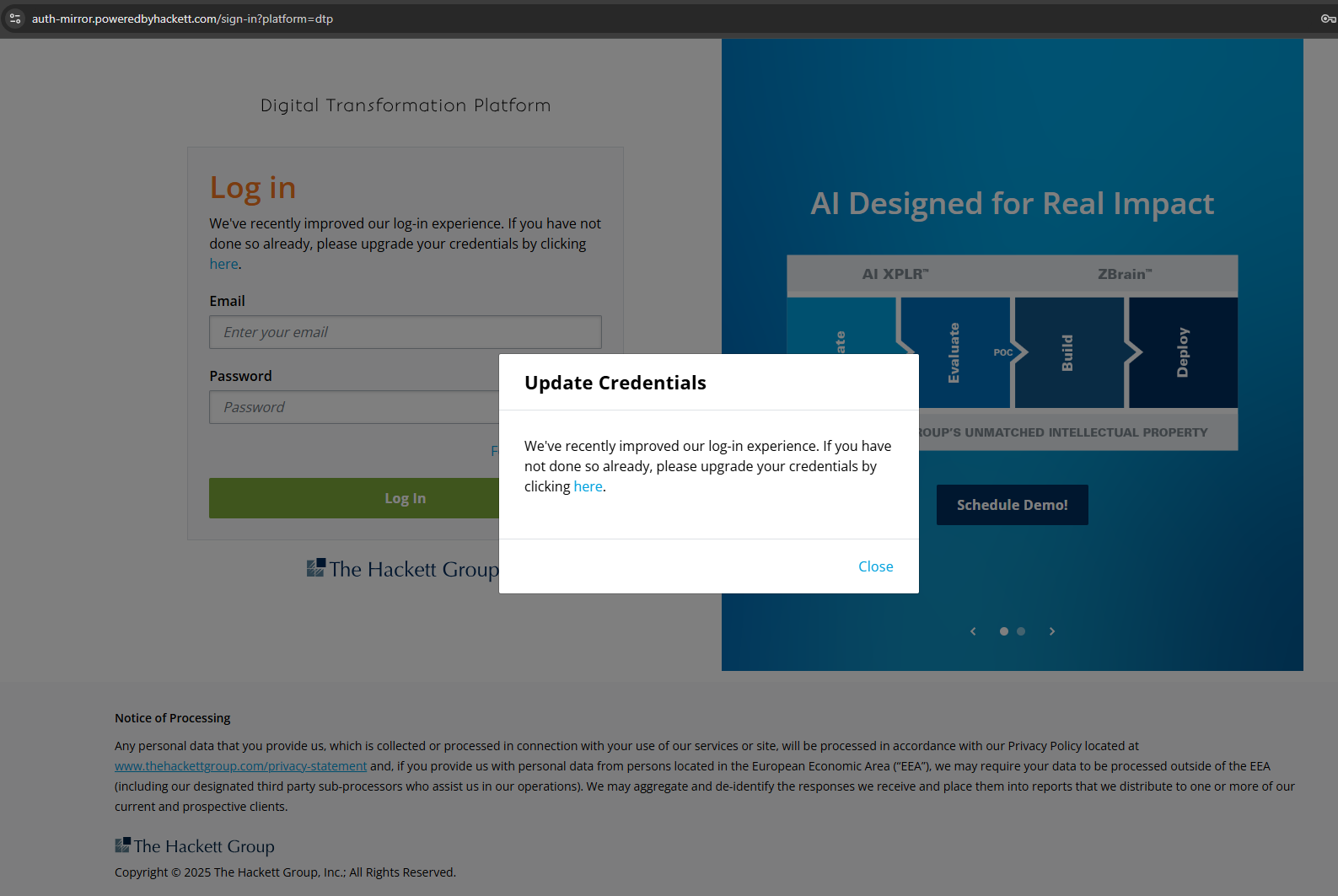
| When you first open the DTP site, a message will prompt you to update your credentials for MFA or close the message if you have already completed this step. | ||
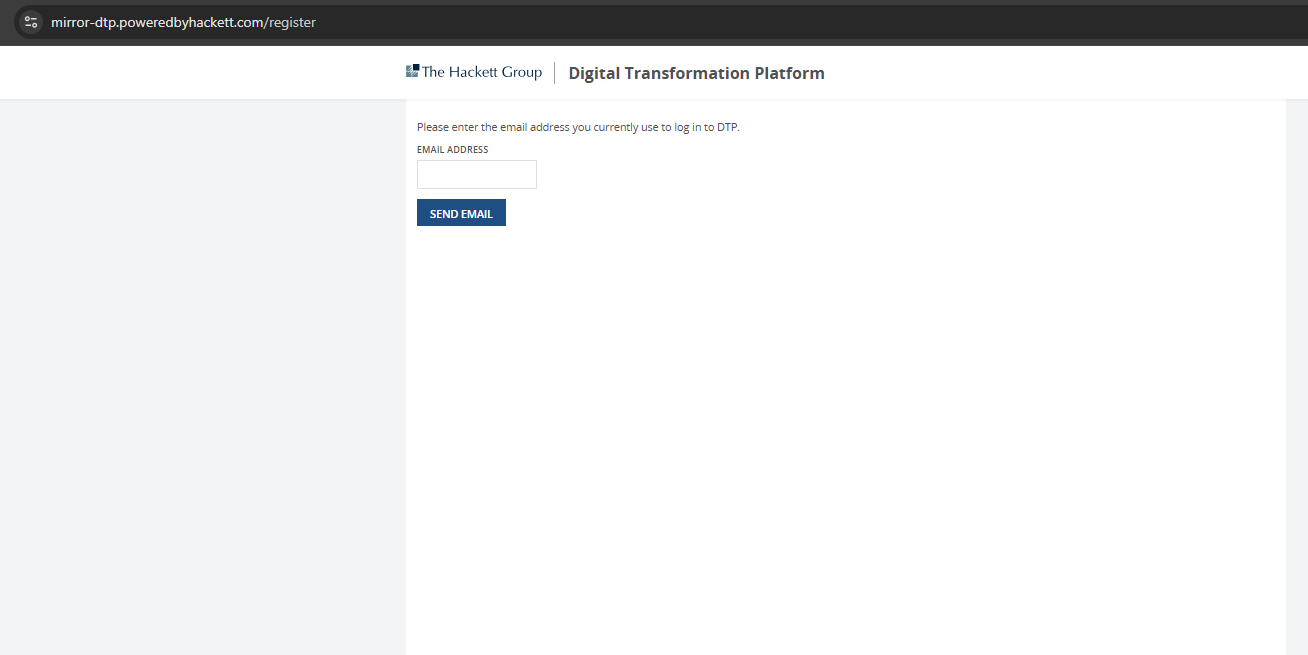
| Click the “here” link to open a screen where you will enter your user email. | ||
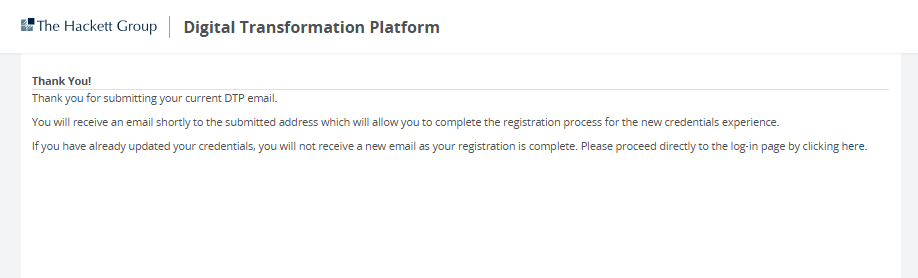
| After entering your email, click the “Send Email” button. If you have already registered for MFA, you can click the “here” link to continue to login. | ||
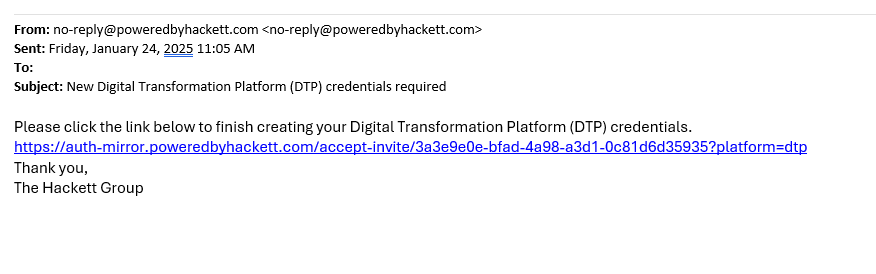
| You will receive an email to complete your MFA registration.
| ||
| Click the link in the email to login. A screen will appear with your email address displayed. Create a password using the provided details.
You can enable the Single Sign-on feature with Hackett Connect if you choose to use the password you have previously set up for Hackett Connect, which already has MFA established.
| ||
|
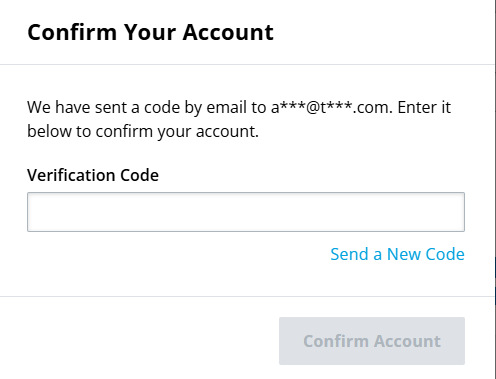
Enter the code sent to your email to confirm your account. | ||
| You will receive an email with a 6-digit code, which you then enter on the screen.
| ||
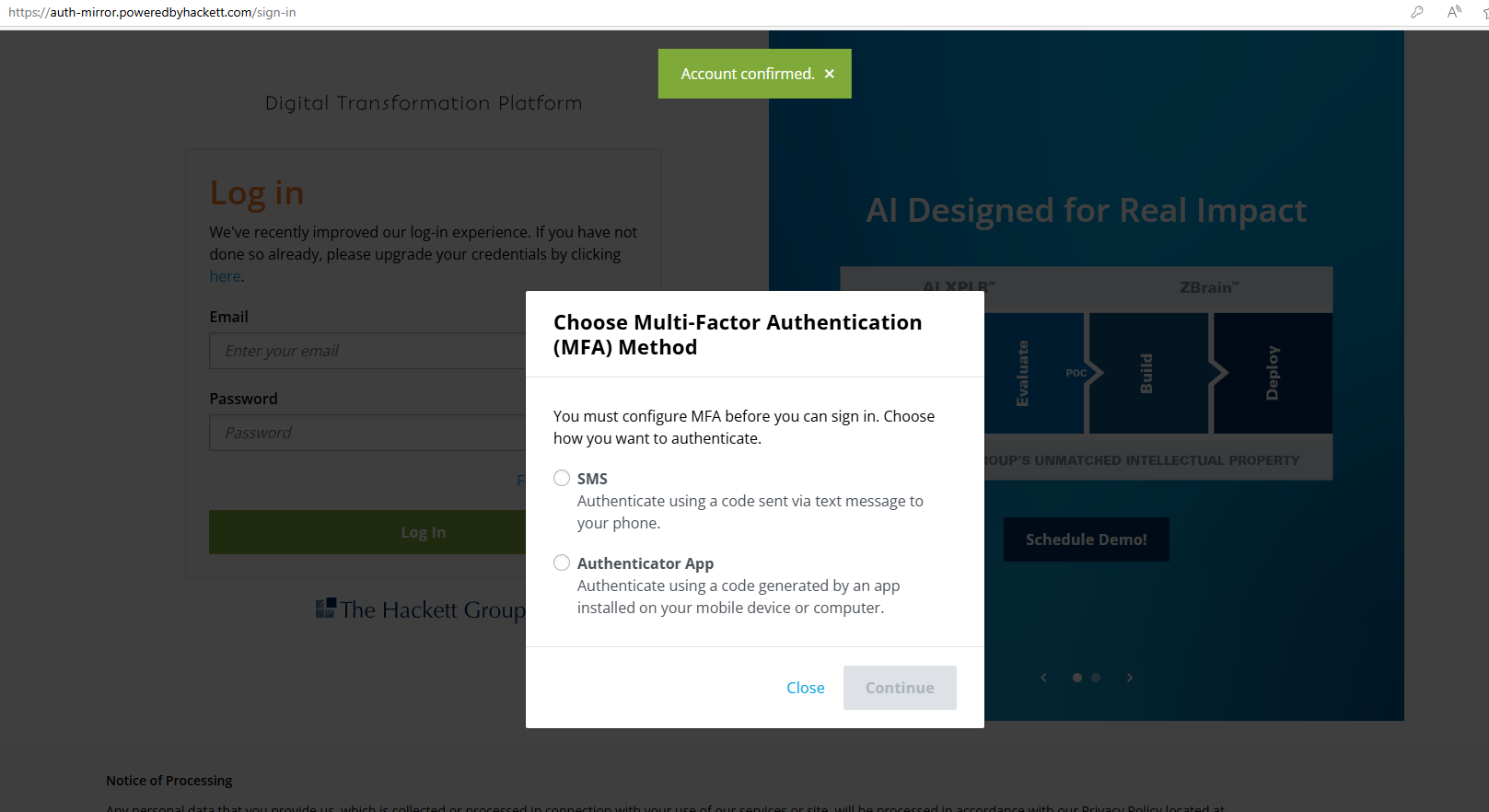
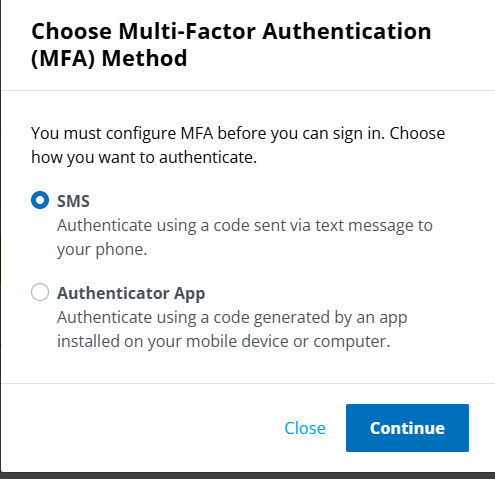
| Once your account is confirmed, choose which MFA method to use: either SMS or the Authenticator App.
| ||
|
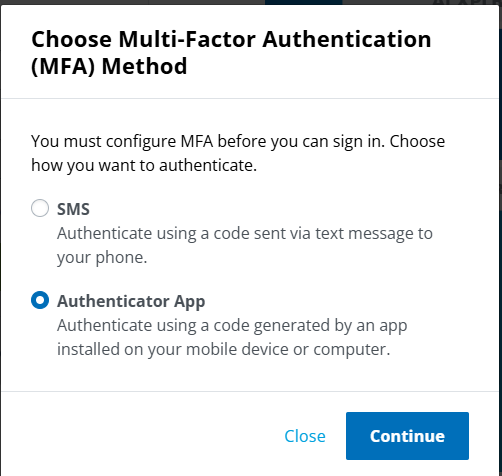
You can configure MFA by selecting SMS or Authenticator App. | ||
|
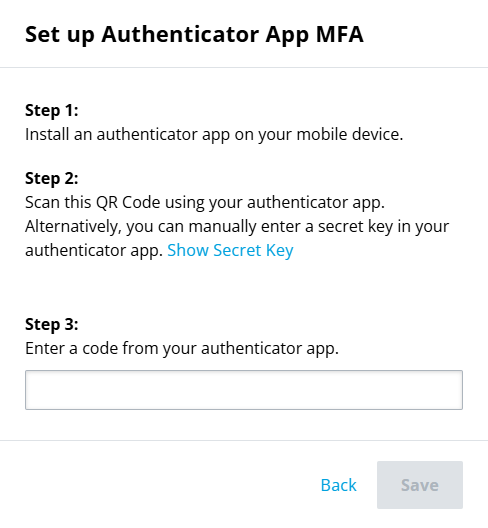
If you select the Authenticator App, follow the steps on the screen and enter the code in the last row.
| ||
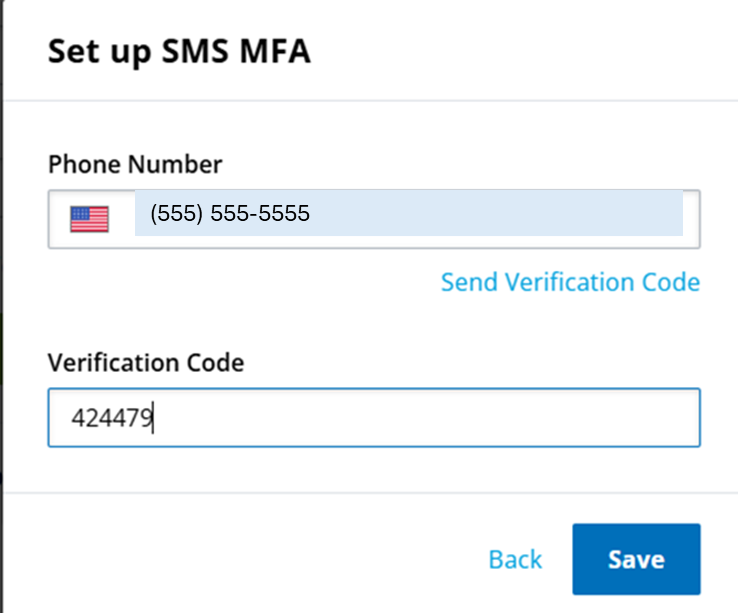
| If you select the SMS option, enter your phone number, and a code will be sent to your phone. Enter that code on the screen. | ||
| If you select the SMS option, enter your phone number, and a code will be sent to your phone. Enter that code on the screen.
| ||
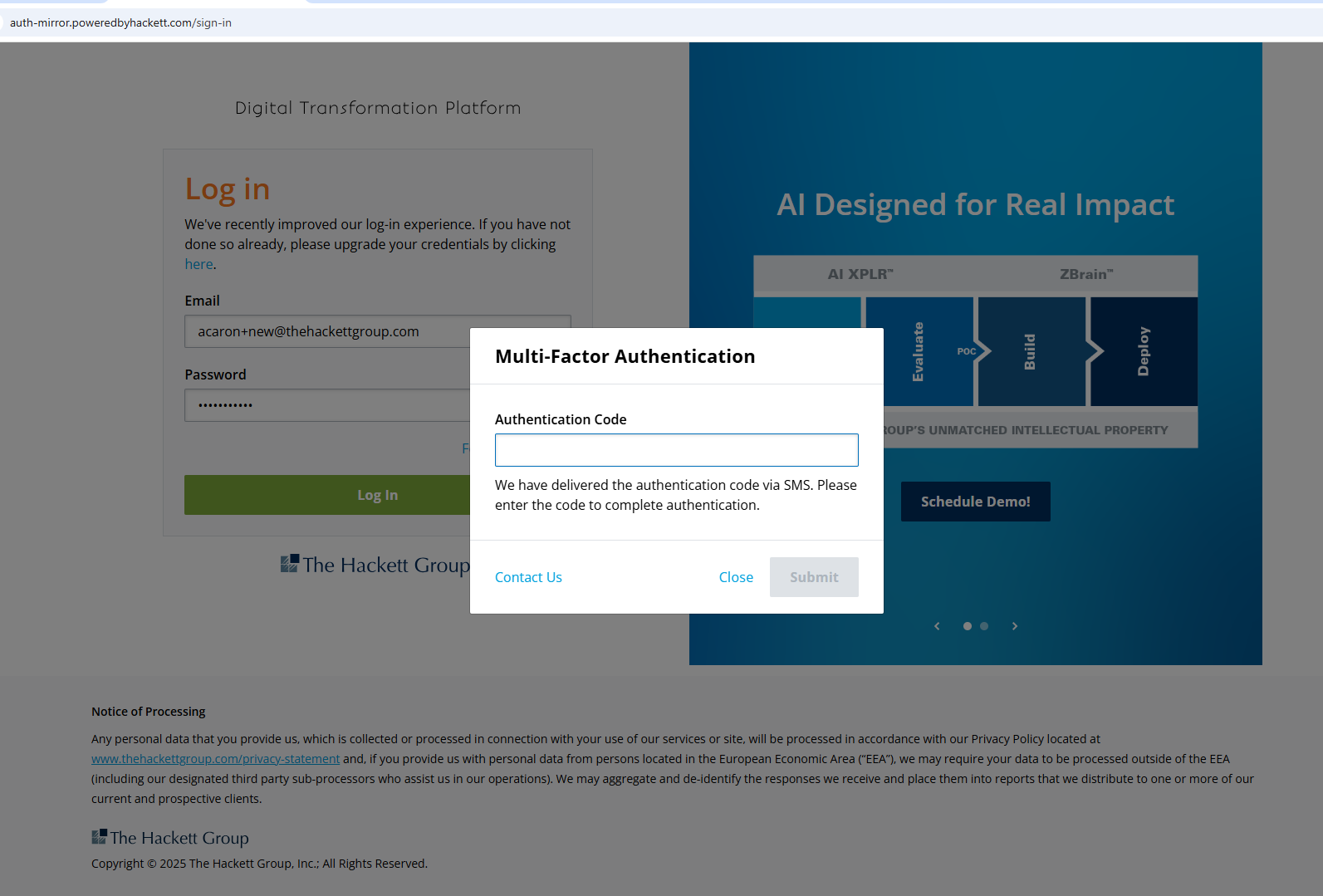
| For future logins, if you selected SMS for receiving the authentication code, this screen will display once you enter your username and password. | ||
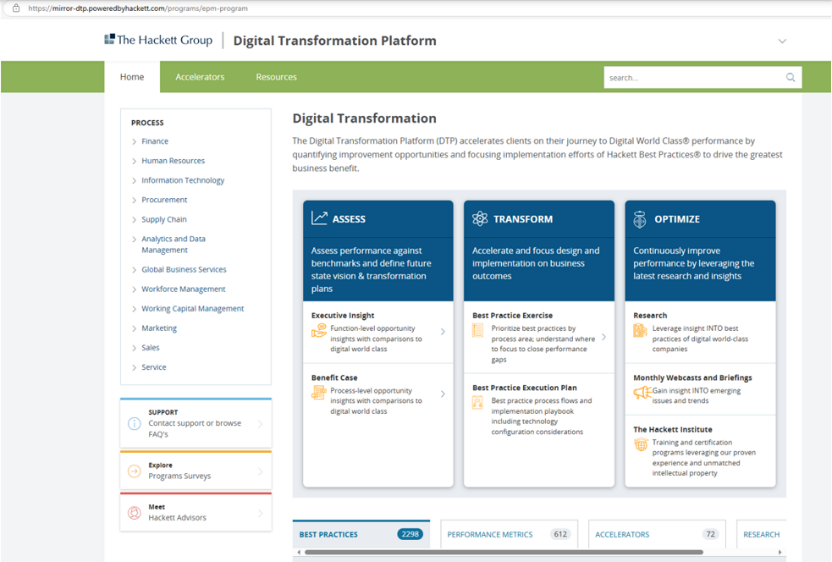
| Upon entering the code for either MFA option, you will be directed to the DTP Home page.
| ||
| DTP Home page
| ||
Other Possible Scenarios
|
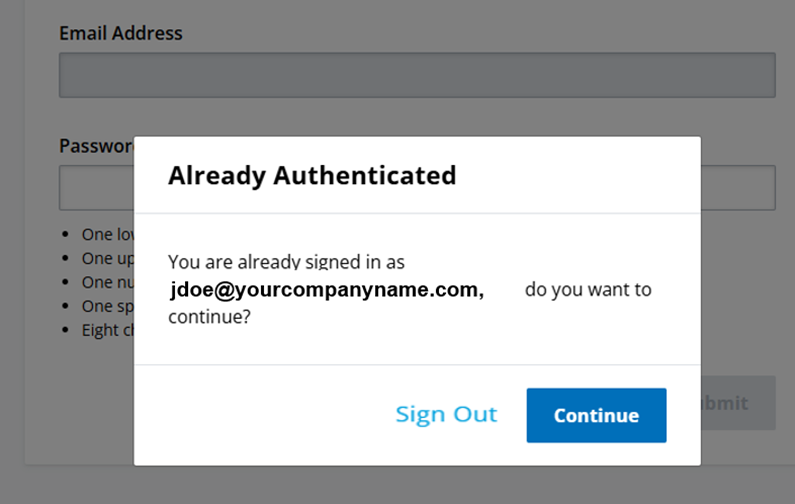
If your session has expired in DTP but your Single Sign-On is still active, you will see a notification with the option to either sign out or continue. | ||