Feature Enhancements
Prospects – Update prospects home page - inclusion of alpha search
Industry – Ability to change industry cuts on the fly
Prospects – Update Prospects Home Page - Inclusion of Alpha Search
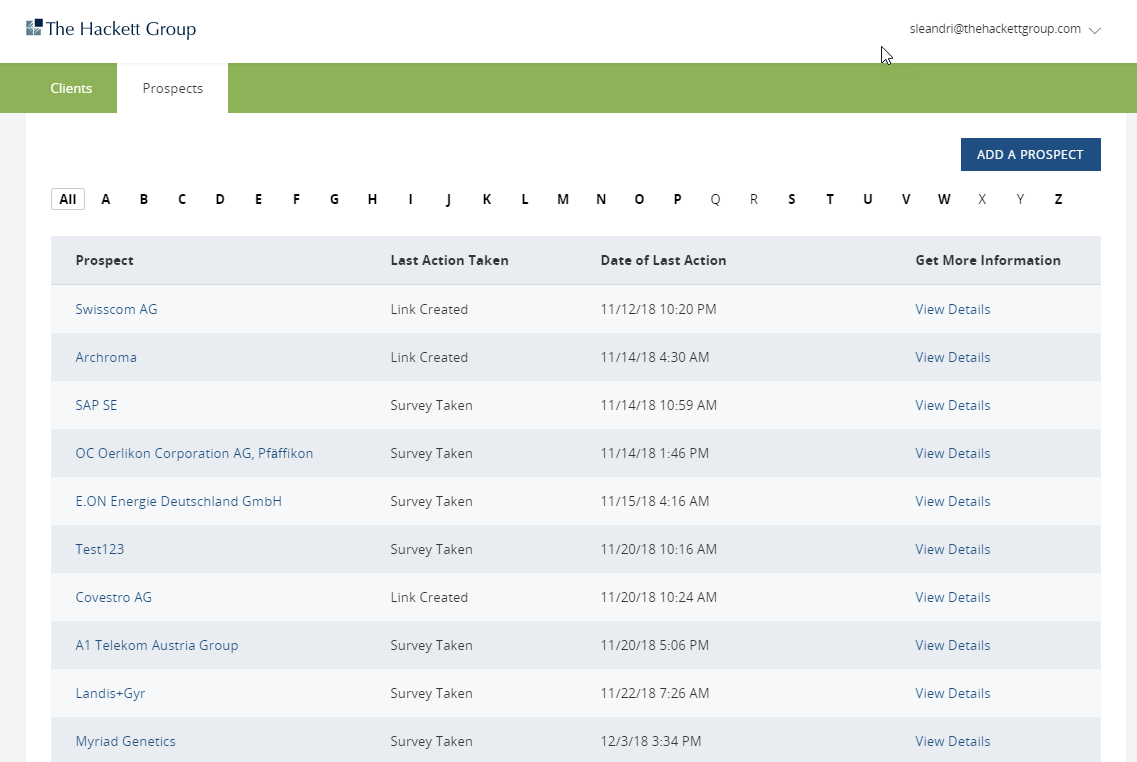
A new feature to the Prospect selection page is the ability to search prospects using the alpha sorting toolbar.
All Stakeholders: Industry Feature – Ability to Change Industry Cuts on the Fly
A new feature being introduced for quantitative tools, starting with the E2E Benefit Case assessment tools, is the ability to benchmark to various industry sectors.
When industry data is available, the default industry established for a client will be the peer comparison in the tool report. The user also has the ability to choose the “Filter” option on a report page to change the industry peer comparison.
Scenario 1: Initial Results for a New Survey
When you complete an E2E Benefit Case for the first time, your peer comparison will be the default industry established in the Client setup for the program. If that industry is not available, the peer displayed will be the Median peer group.
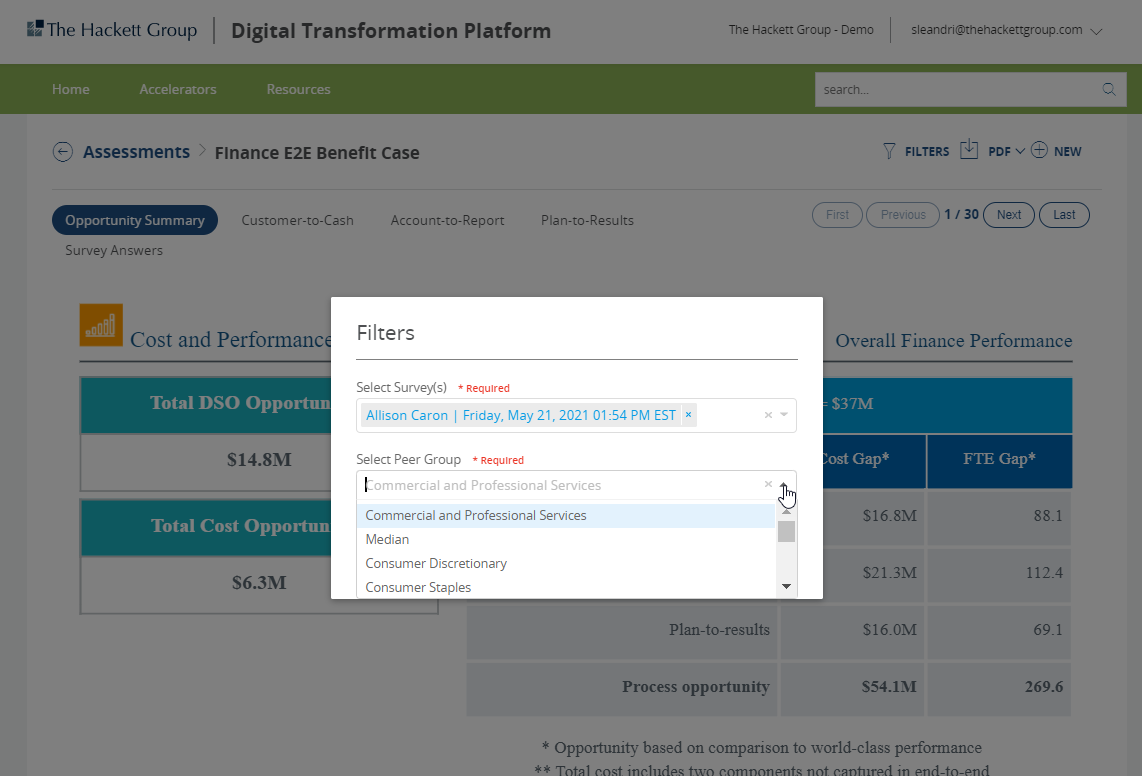
You have the option of selecting an alternative industry by choosing the “Filter” option and selecting a different industry to compare to.
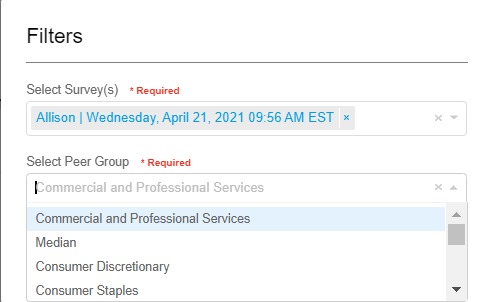
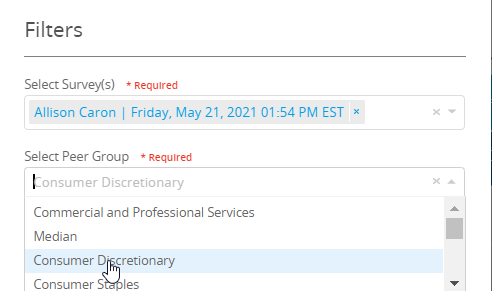
Step 1: Click on the drop-down arrow by the Select Peer Group to see the available industries for assessment tool in use.
Step 2: Highlight the desired industry with your mouse
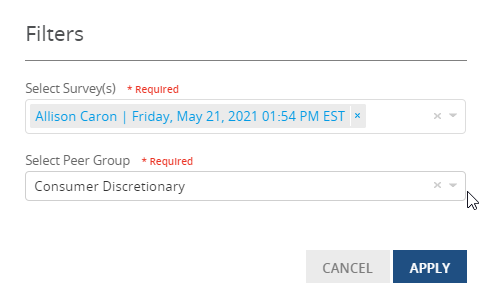
Step 3: Select the “Apply” button to rerun results using the newly selected industry peer group
Step 1 Illustration:
Step 2 Illustration | Step 3 Illustration |
|
|
Scenario 2: Selecting a Previously Completed Assessment
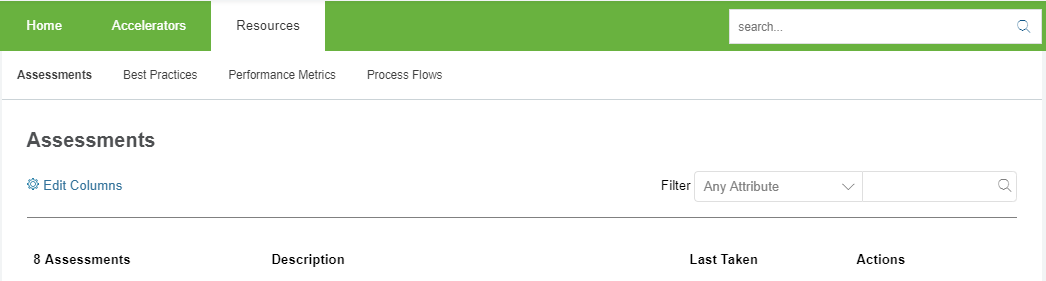
When choosing to review a previously completed assessent, go to the Assessment Tap from the toolbar and choose “Resources” then “Assessments” which will result is a list of assessments previously initiated or completed.
Choose the desired completed E2E Benefit Case assessment tool of interest.

Step 1: If you have completed more than one survey for this assessment tool, you willl then need to choose which from the surveys you have already completed for this assessment tool.
You will also have the option to change from the industry peer group currently in use.
Step 2: It is recommended that you first choose the new industry peer group where you highlight the industry peer group of interest and press the “Apply” button.
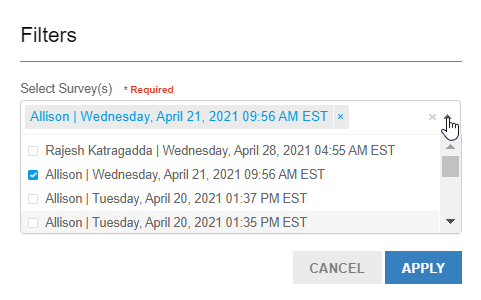
Step 3: Now choose the survey of interest (if you have more than one completed) and press the “Apply” button. If only one survey was created for this assessment tool, it will already be visible in the selection box, and no further action is needed.
In this scenario, you’ll notice that the steps 2 & 3 are reversed compared to Scenario 1. If you first choose the survey (when more than one is available), the report will refresh using the current industry peer group displayed; at which time, you would have to choose the “Filter” option to change the industry peer group.
Step 1: Select assessment tool of interest from the Assessement dropdown under the Resources option in the toolbar.
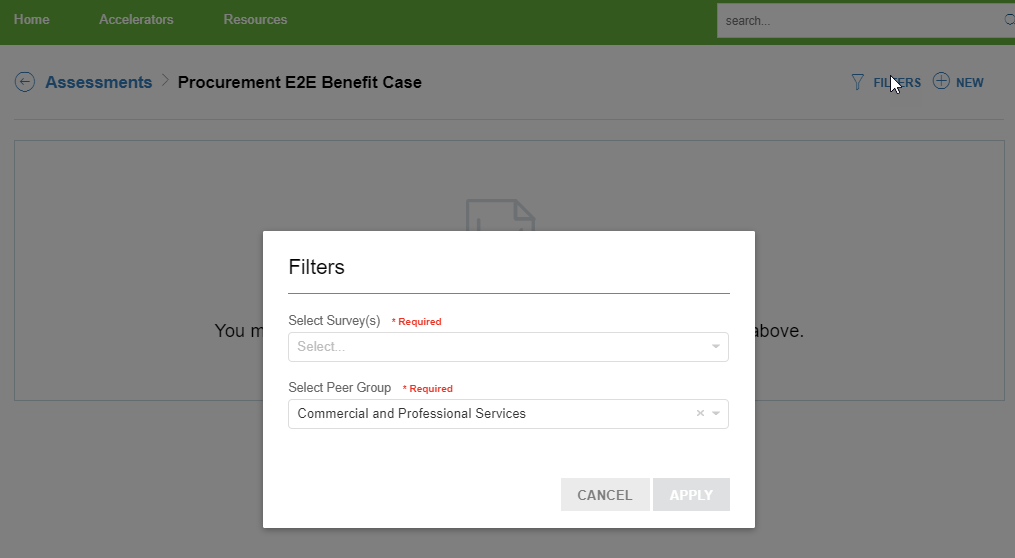
Step 2 – Change Industry Peer Group | Step 3 – Select Survey |
|
|