Release 2.0 is focused on providing users with additional ways to discover content within the site besides the standard free text search.
- We have added new menu named, RESOURCES, which will appear after the ACCELERATORS menu. Under RESOURCES there is a sub-navigation to each type of content (Assessments, Best Practices, Performance Metrics, Process Flows, Playbooks and Research) in a table format.
- The new Resources pages exposed more attributes of the content so you can filter and search the content more easily. It also allows you to customize what attributes you view and more easily download.
- The DASHBOARD menu has moved. To view the output of an Assessment such as a Best Practice Exercise or any other benchmark assessment. Simply click on the Assessments item under RESOURCES.
- New paging feature on the Home page accordions to speed performance.
- Ability to update a previously completed Assessment.
- User session will automatically expire after 30 minutes of no activity and be redirected to the login to re-authenticate.
Feature 1 - Resources - New menu

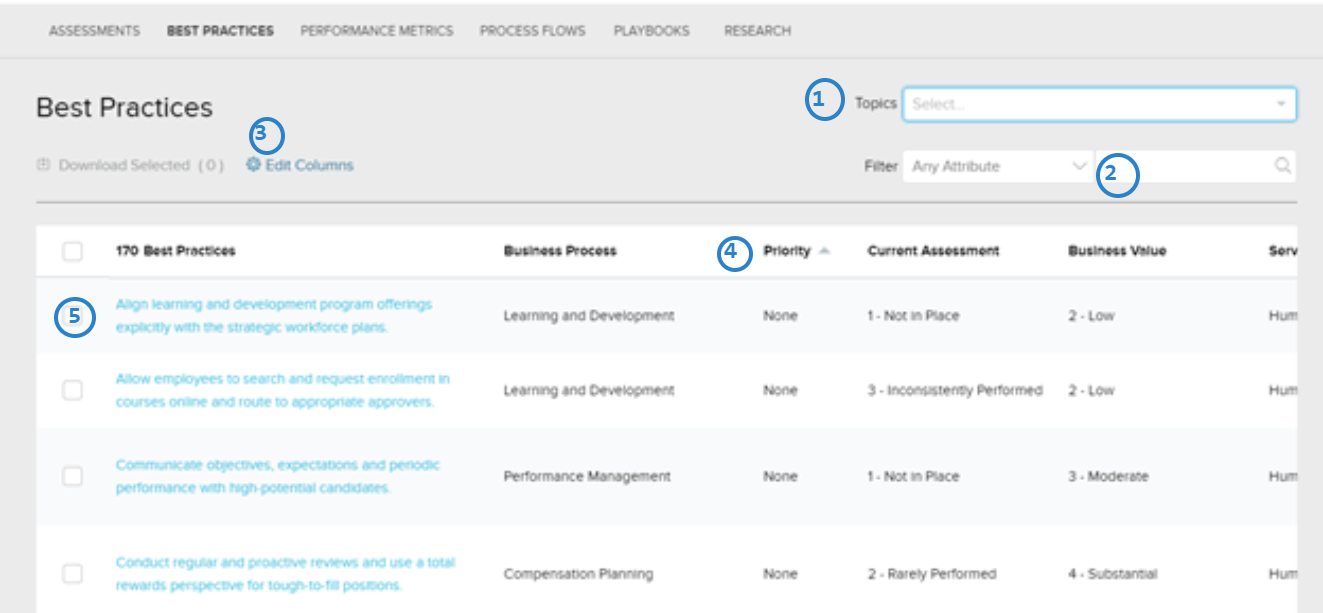
Feature 2 - Resources - New table features
- You can filter the list of items by Topic
- You can additionally search the list on a specific attribute and/or any attribute
- You can adjust the attributes that display by turning columns on or off
- You can sort the list
- You can click the check box to download an item(s)
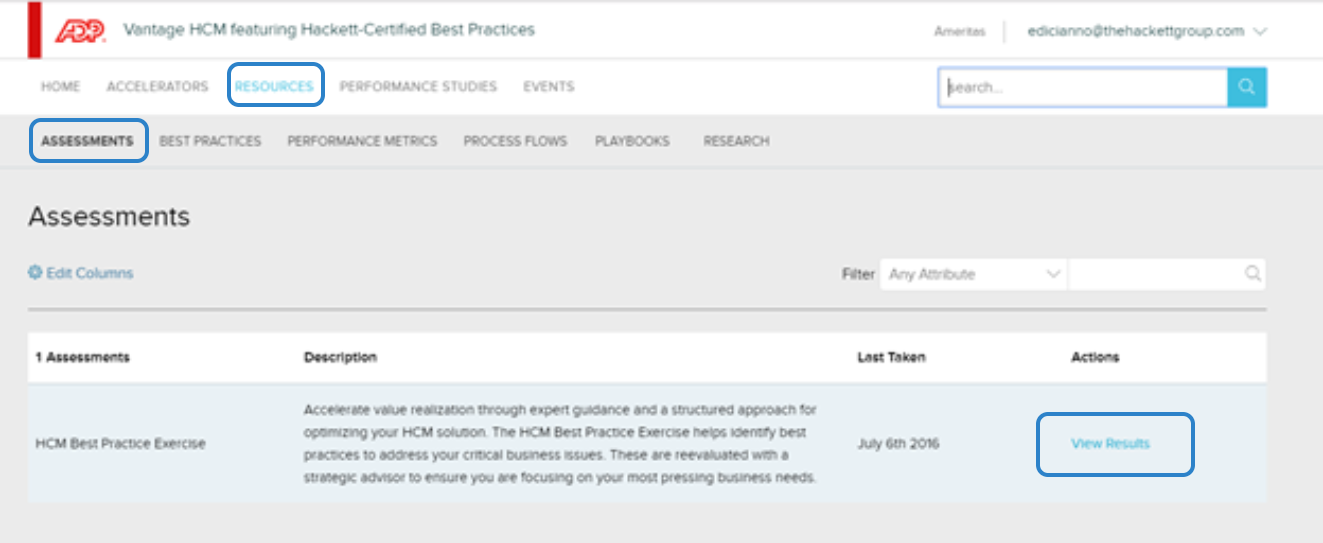
Feature 3 - Dashboard - Relocation of menu
The Dashboard menu has moved. You can get to it in 2 different ways
- Resources > Assessments > View Results
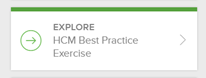
- Click directly on the Explore card on the left side of the Home page in the program.
Feature 4 - Home - According Load More
We have established some paging to the accordion lists to default to show 25 items as a time. To see more simply click the Load More to retrieve the next 25 items.

Feature 5 - Update an Assessment
You can now updated a previously Completed assessment.
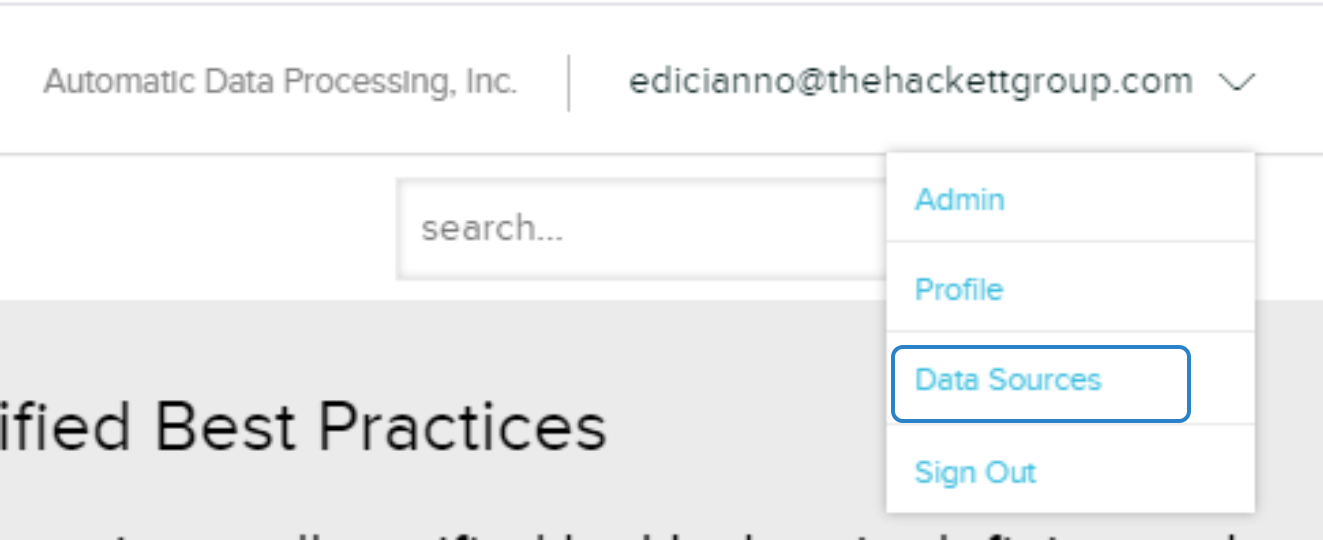
- First click on Data Sources under your name in the upper left of the site header.
- On the Data Source page find the Completed assessment and click on the link to update.

Feature 6 - Time Out
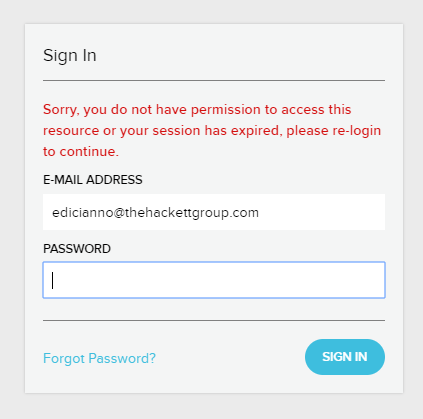
Session will timeout after 30 minutes of no activity. When your session expires, you will be redirected to the login page to re-authenticate.